Configuration · Telephony · Telnyx
Configure Multi-party Calling
Create the dedicated Credential Connection and Voice API Application that let ChartHero add participants to a call.
This walkthrough covers the Telnyx setup for ChartHero Multi-party Calling. The Credential Connection described here is one of two distinct Telnyx resources the complete setup requires; you will also create a Voice API Application.
Keep credentials and account identifiers out of screenshots and support messages. Do not publish API keys, SIP usernames or passwords, phone numbers, Connection IDs, or Application IDs.
Before you begin
Have these items ready:
- a Telnyx account with an API v2 key;
- the outbound voice profile intended for this ChartHero environment;
- at least one authorized caller-ID number; and
- access to Settings → Telephony in the target ChartHero environment.
Use this ChartHero environment's callback URL for both Telnyx resources you create in this guide:
https://api.charthero-dev.com/v1/telephony/telnyx/conference/events
Confirm that the Telnyx value matches it exactly.
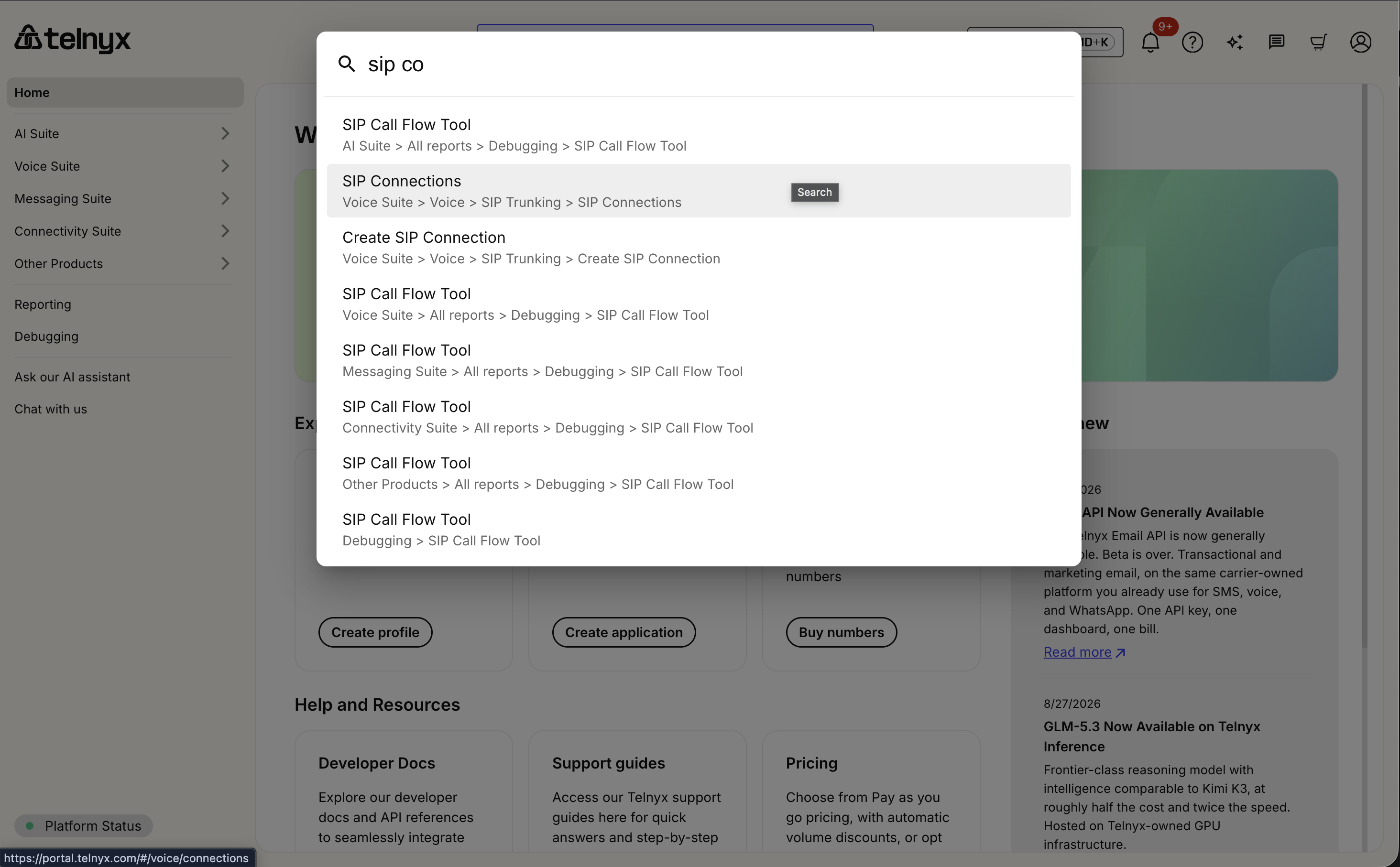
1. Open SIP Connections
In the Telnyx Mission Control Portal, search for SIP Connections, or open Voice Suite → SIP Trunking. Select Create Connection.
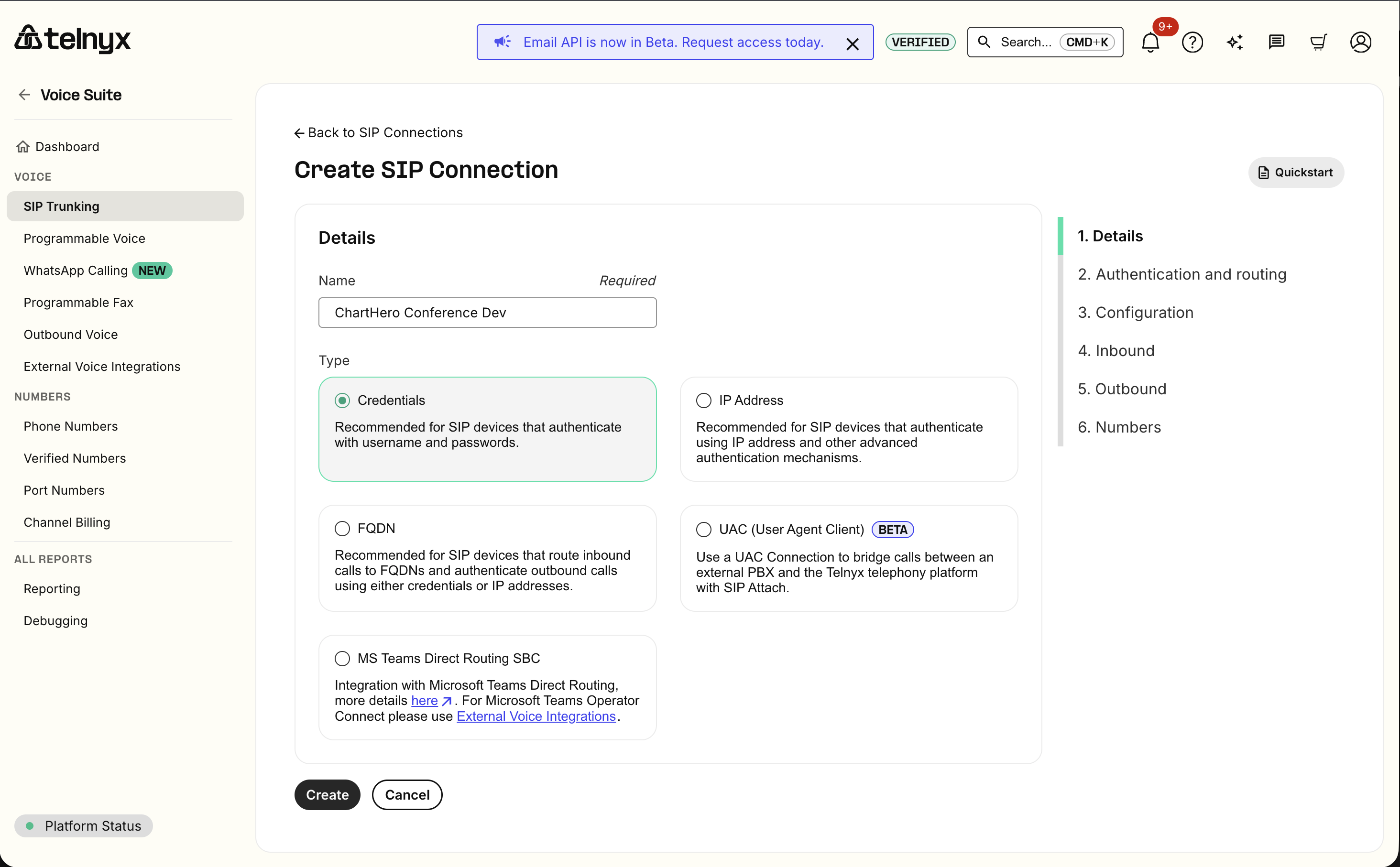
2. Create a Credential Connection
Enter an environment-specific name such as ChartHero Multi-party Dev. In the
connection type field, type or select Credentials, then choose Create.
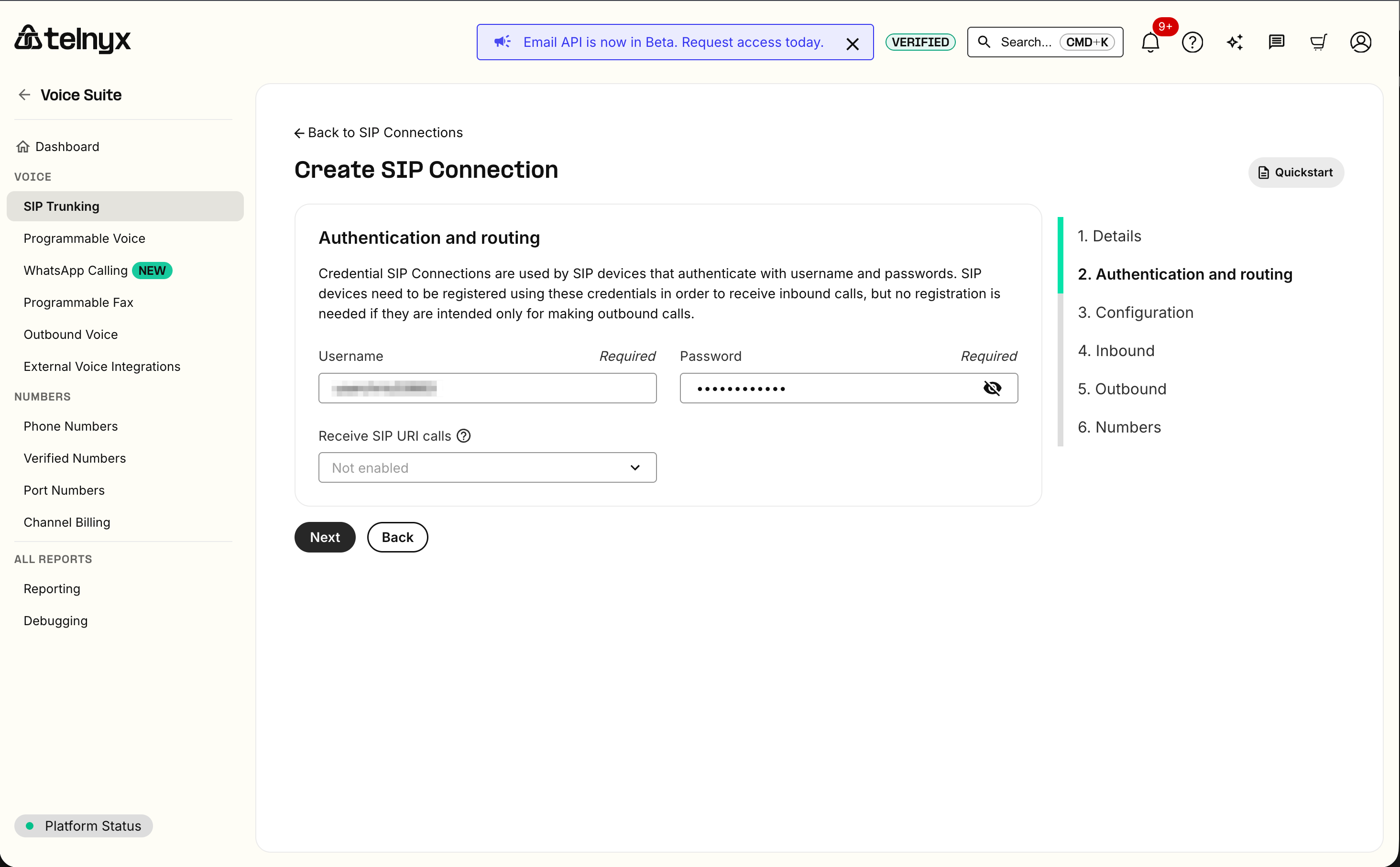
On Authentication and routing:
- leave the generated credential values in place unless your organization has a separate credential policy;
- do not copy the generated SIP username or password into ChartHero; and
- leave Receive SIP URI Calls disabled for this outbound setup.
Treat the generated values as secrets even if this workflow does not require you to enter them in ChartHero.
3. Configure the connection
Use these values on Configuration:
| Setting | Value |
|---|---|
| Status | Active |
| AnchorSite | Latency |
| Encrypted media | Disabled |
| Webhook URL | https://api.charthero-dev.com/v1/telephony/telnyx/conference/events |
| Webhook Failover URL | Leave blank unless ChartHero provides one |
| Webhook API Version | API v2 |
| Park all outbound calls | Enabled |
| Enable Call Cost | Disabled |
| Conversation persistence | Disabled |
Park all outbound calls is required. It appears immediately below the Webhook API Version controls and can be easy to miss if the page is not scrolled far enough. A connection with this setting disabled will fail ChartHero validation.
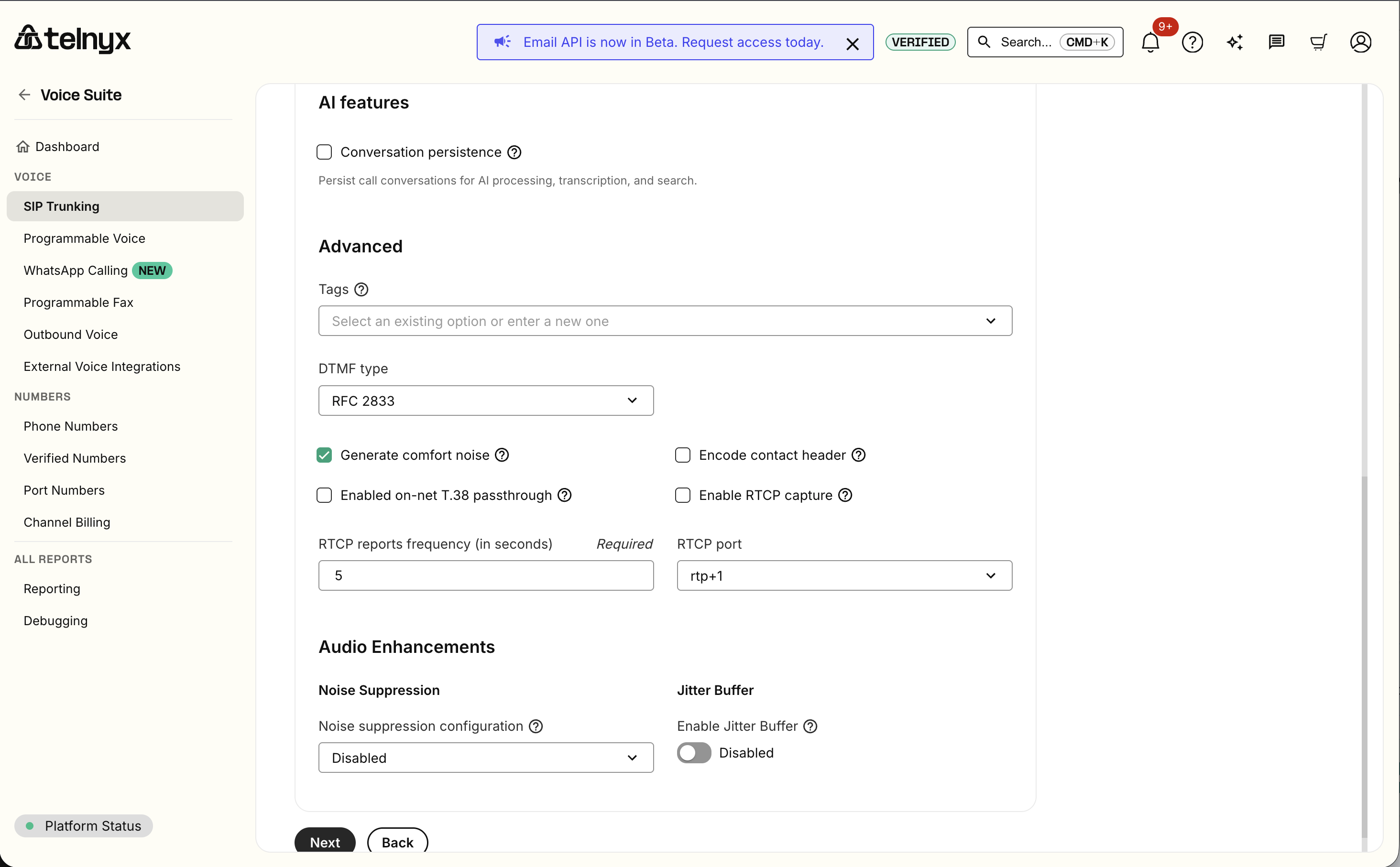
Under Advanced features, retain the portal defaults. In particular:
- use RFC 2833 for DTMF;
- leave Telnyx noise suppression disabled; and
- leave the jitter buffer disabled unless it has been separately tested.
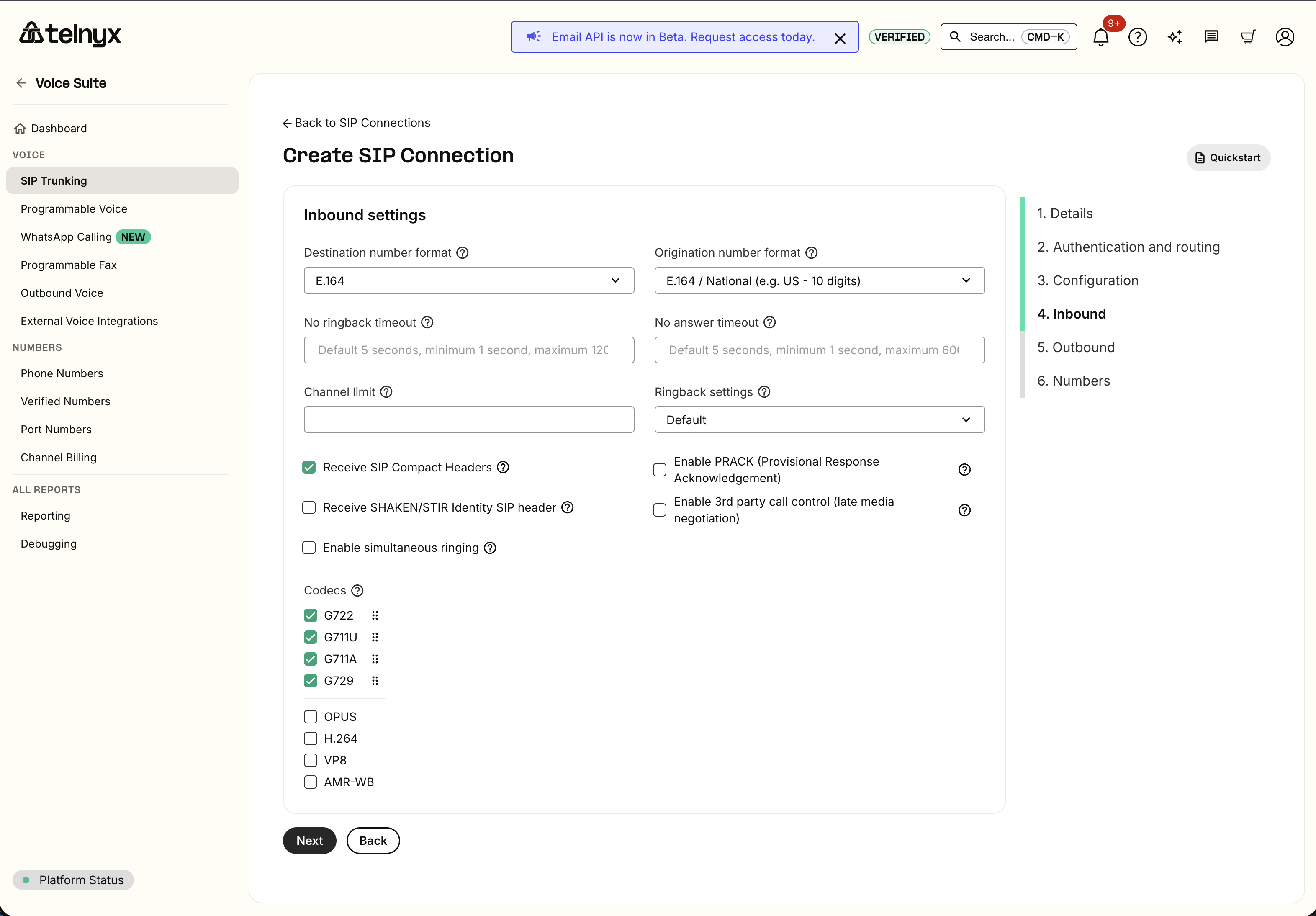
4. Leave inbound settings at their defaults
ChartHero's Multi-party Calling workflow is outbound. On Inbound, leave the SIP subdomain, channel limit, and receive settings at their portal defaults, then continue.
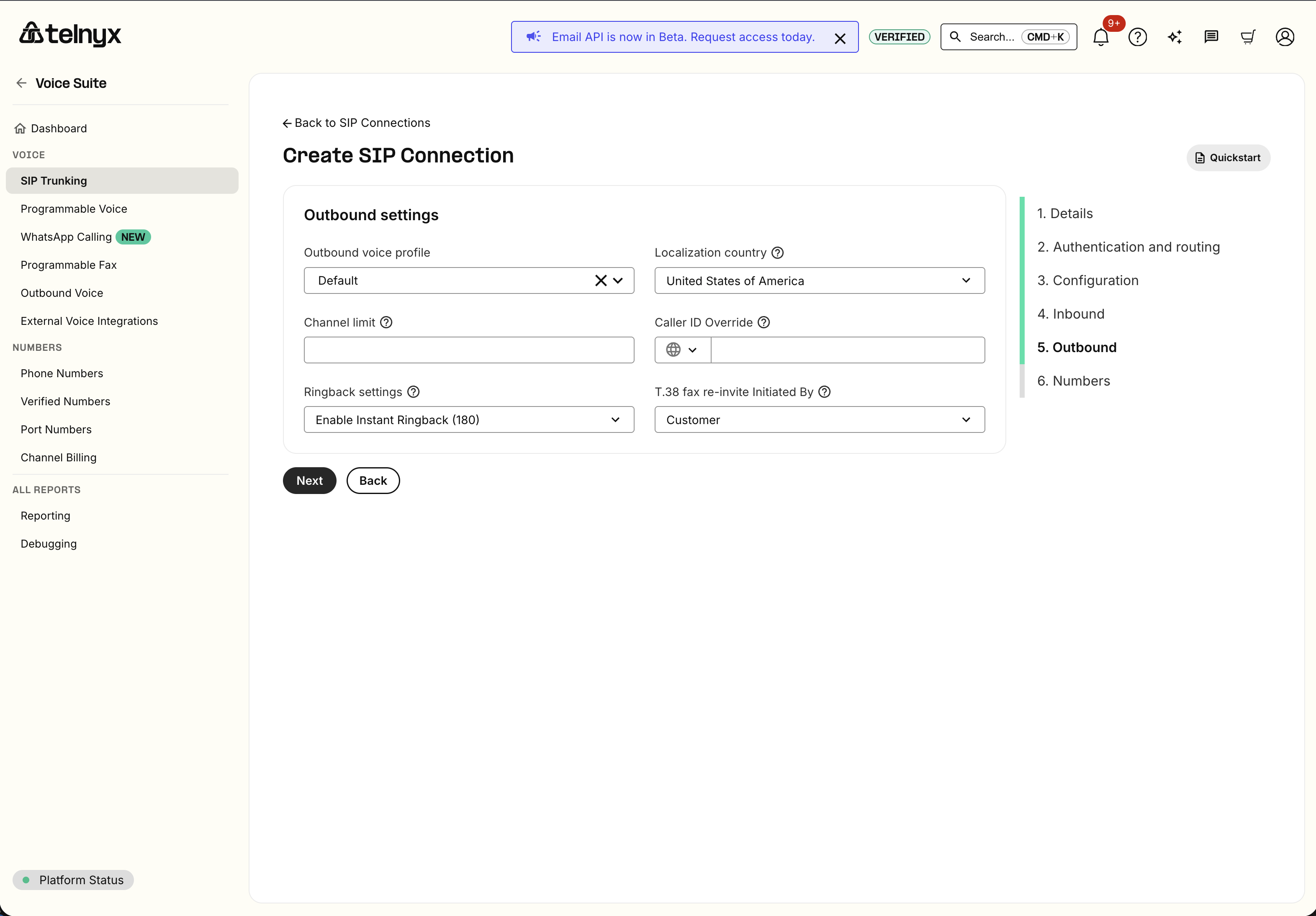
5. Select the outbound profile
On Outbound, choose the outbound voice profile intended for this environment. Leave the channel limit unset unless your Telnyx account requires an explicit limit. Keep the caller-ID override and ringback settings at their defaults.
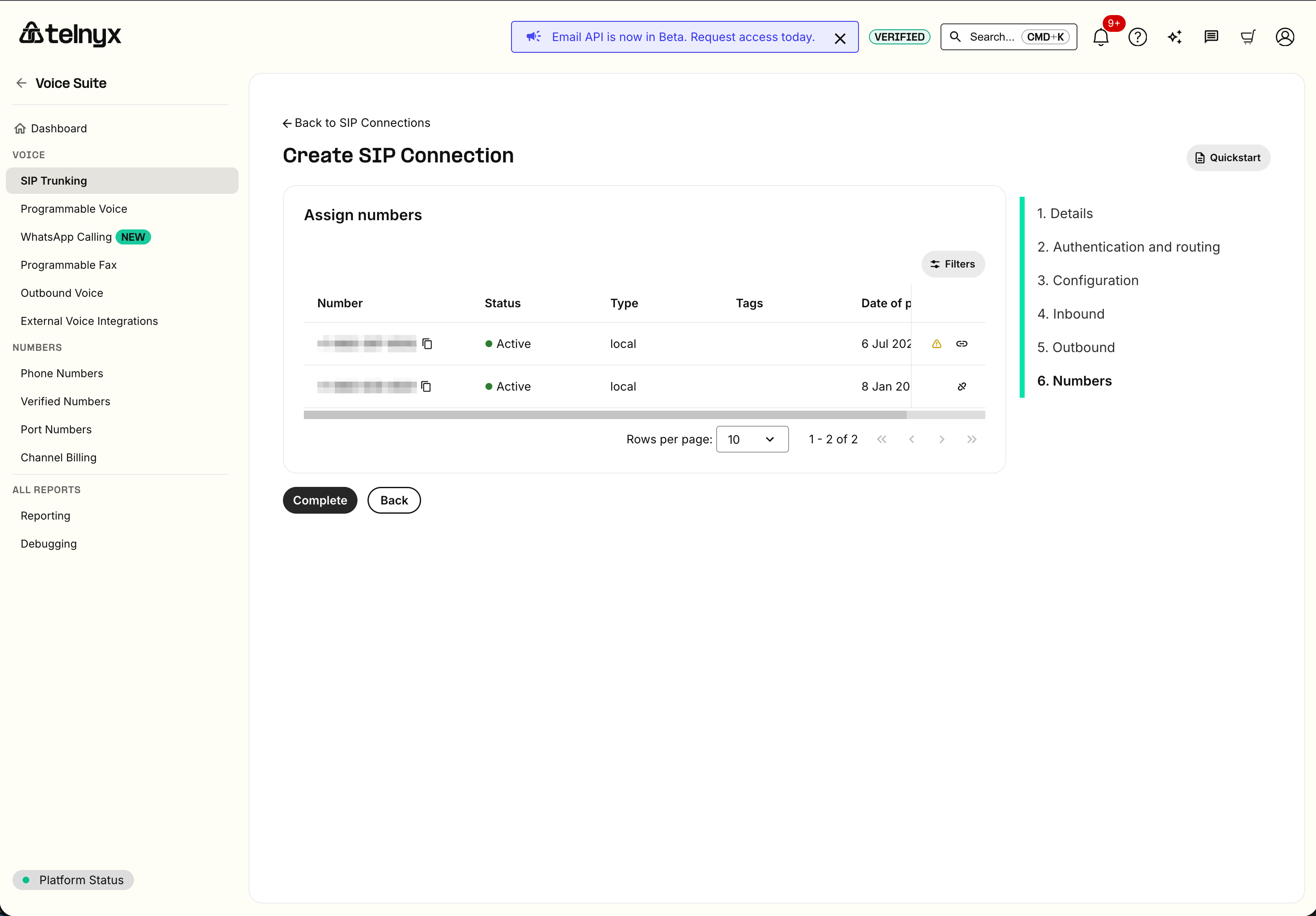
6. Assign a caller-ID number
Assign at least one authorized source number, then complete the wizard. A phone number can be attached to only one Telnyx resource at a time; moving an existing number can interrupt whatever connection currently owns it.
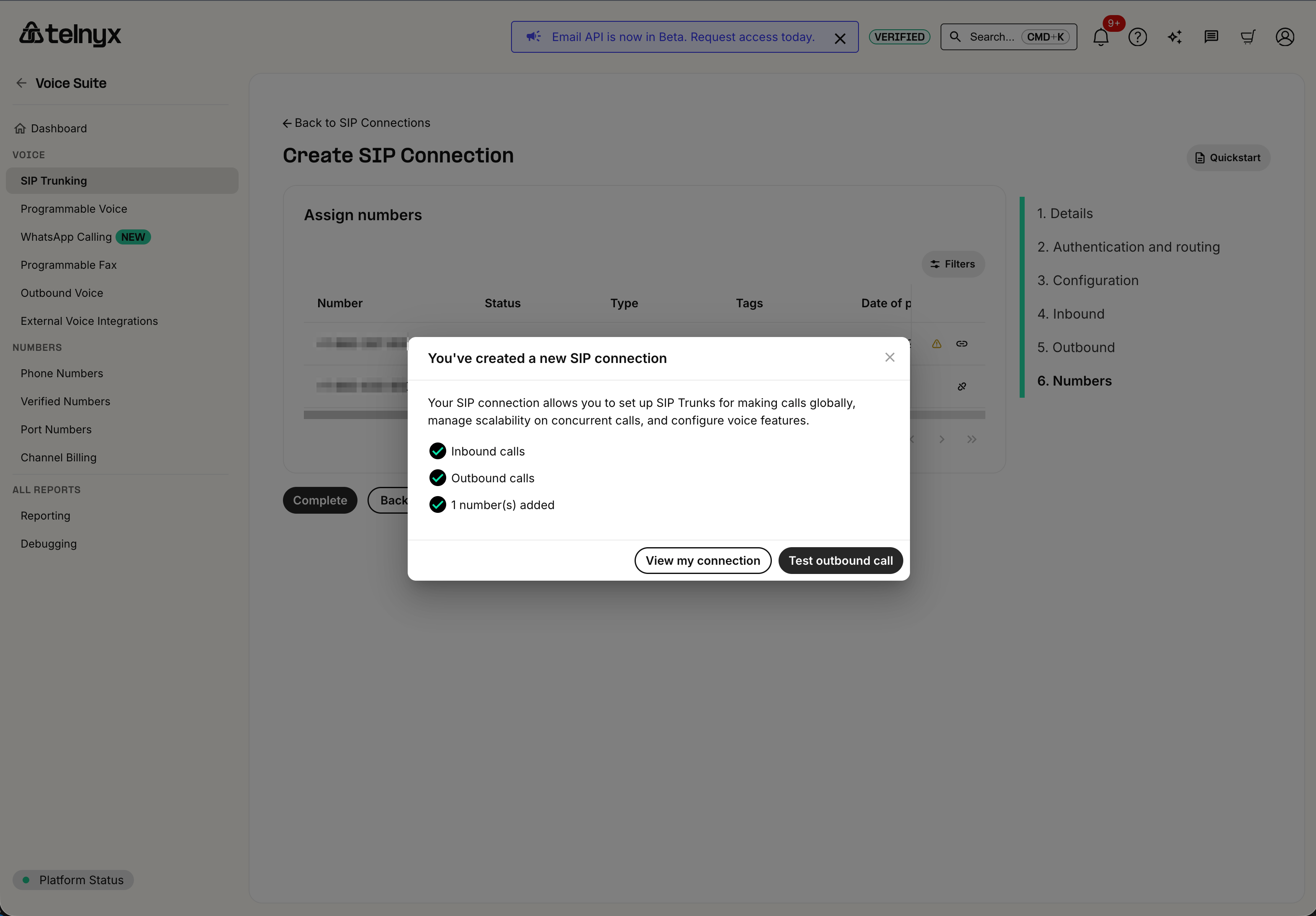
After selecting Complete, Telnyx confirms that the connection was created and shows how many numbers were added.
Before continuing, reopen the connection and verify:
- the connection is active;
- the webhook URL is exact and uses API v2;
- Park all outbound calls is enabled;
- the intended outbound voice profile is selected; and
- at least one caller-ID number is assigned.
7. Create a Voice API Application
The Multi-party Calling setup also requires a distinct Telnyx Voice API Application for backend call-control commands. Open Voice Suite → Programmable Voice → Voice API Applications, then select Create Voice App. Do not create a TeXML Application.
The application name must be unique across the Telnyx account. Use an
environment-specific name such as ChartHero Multi-party Dev Voice API.
Configure Details as follows:
| Setting | Value |
|---|---|
| Application name | A unique environment-specific name |
| AnchorSite | Latency |
| Tags | Optional |
| Webhook URL | https://api.charthero-dev.com/v1/telephony/telnyx/conference/events |
| Webhook Failover URL | Leave blank unless ChartHero provides one |
| Webhook API Version | API v2 |
| Enable hang-up on timeout | Disabled |
| Custom webhook timeout | Keep the displayed provider default; 10 seconds is acceptable |
| DTMF Type | RFC 2833 |
| Enable RTCP capture | Disabled |
| Enable Call Cost | Disabled |
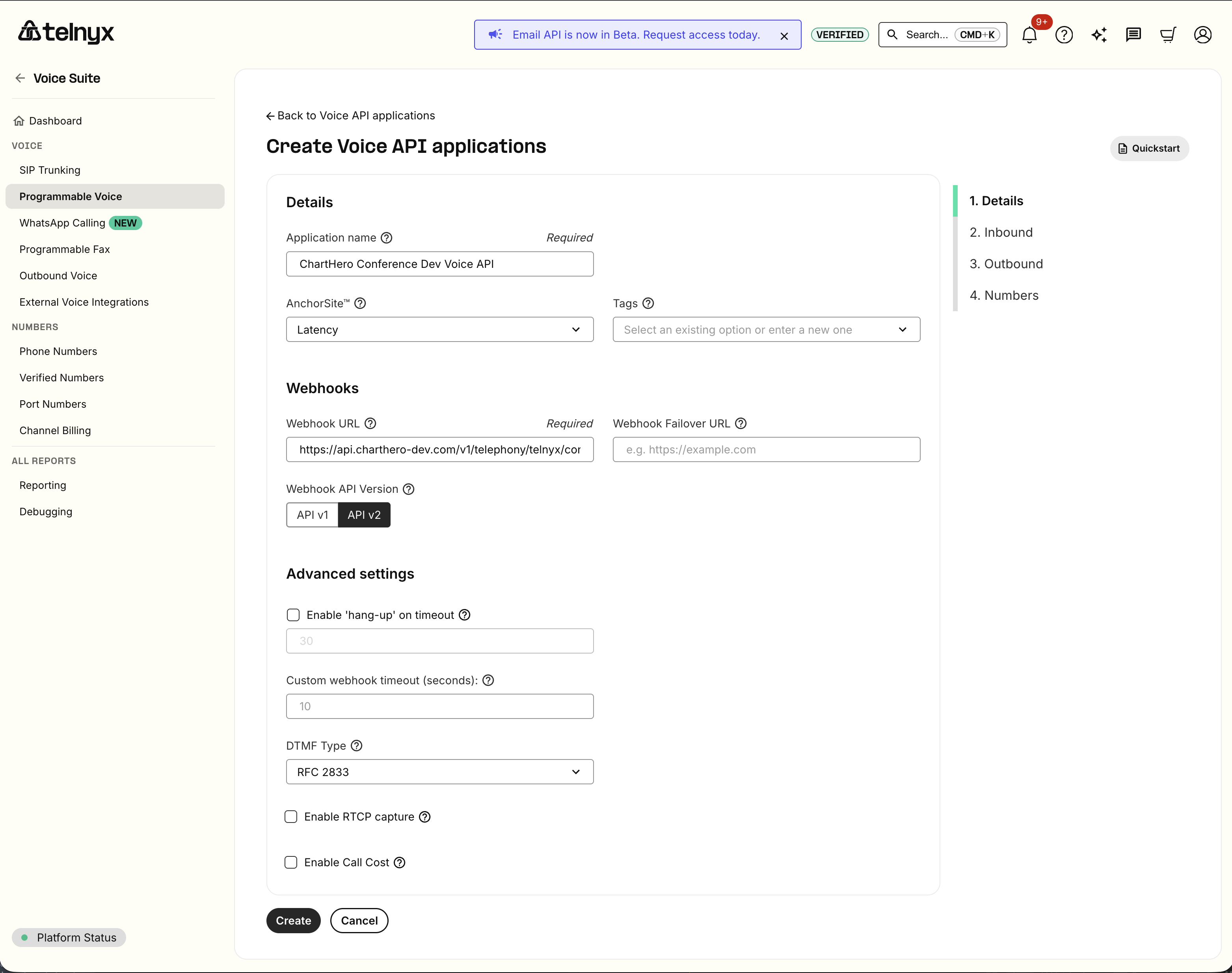
The Voice API Application does not have a Park all outbound calls setting. Call parking is required only on the Credential Connection.
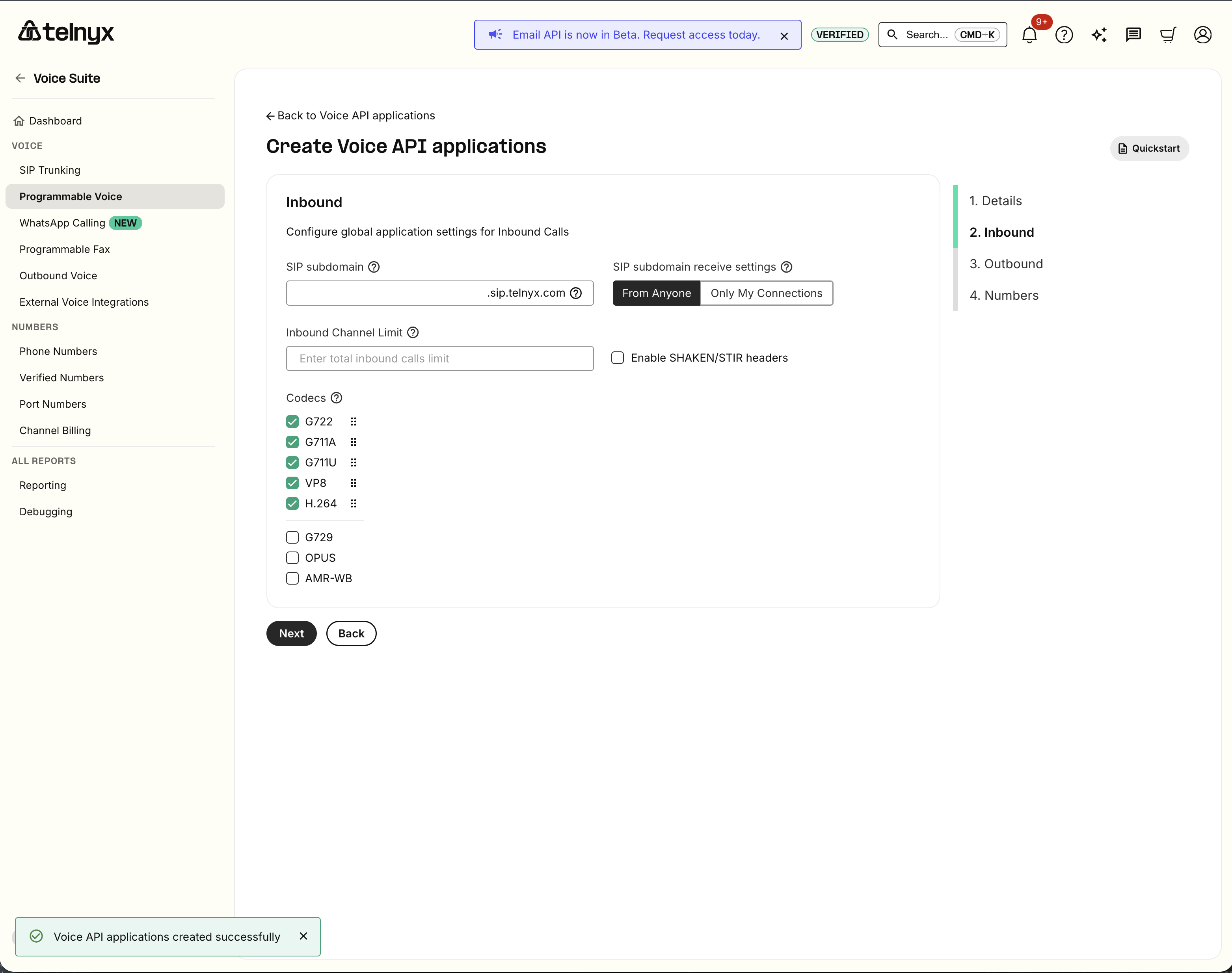
8. Retain the Voice API inbound defaults
Leave the SIP subdomain and inbound channel limit blank. Keep the portal-default SIP receive setting, SHAKEN/STIR setting, and codec selections unchanged.
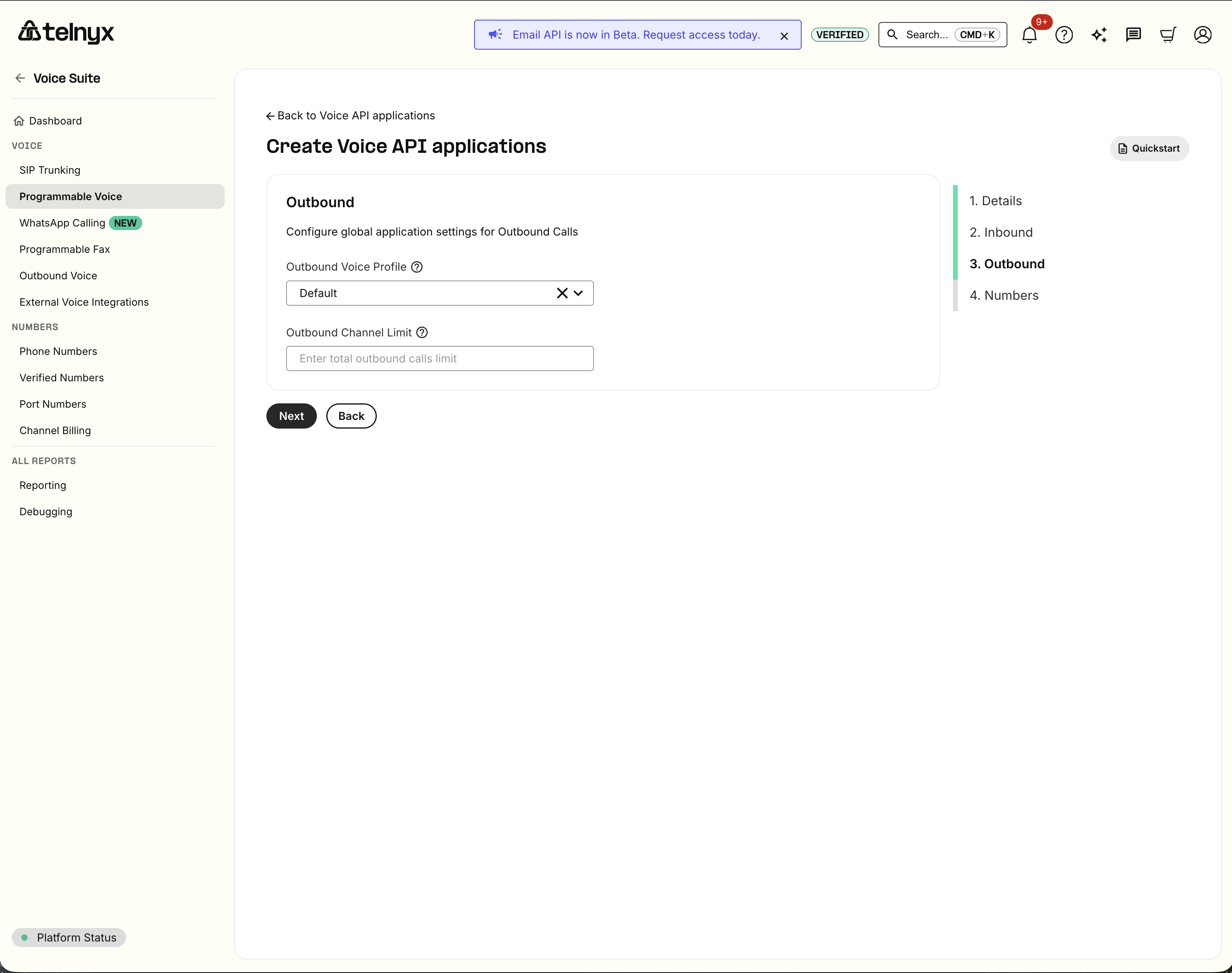
9. Select the Voice API outbound profile
Choose the same intended outbound voice profile used by the Credential Connection. Leave the outbound channel limit blank unless your Telnyx account requires an explicit limit.
10. Skip Voice API number assignment
Number assignment is optional for ChartHero's outbound Voice API commands when the outbound profile already authorizes the number. Do not move the caller-ID number away from the Credential Connection. Continue without selecting a number.
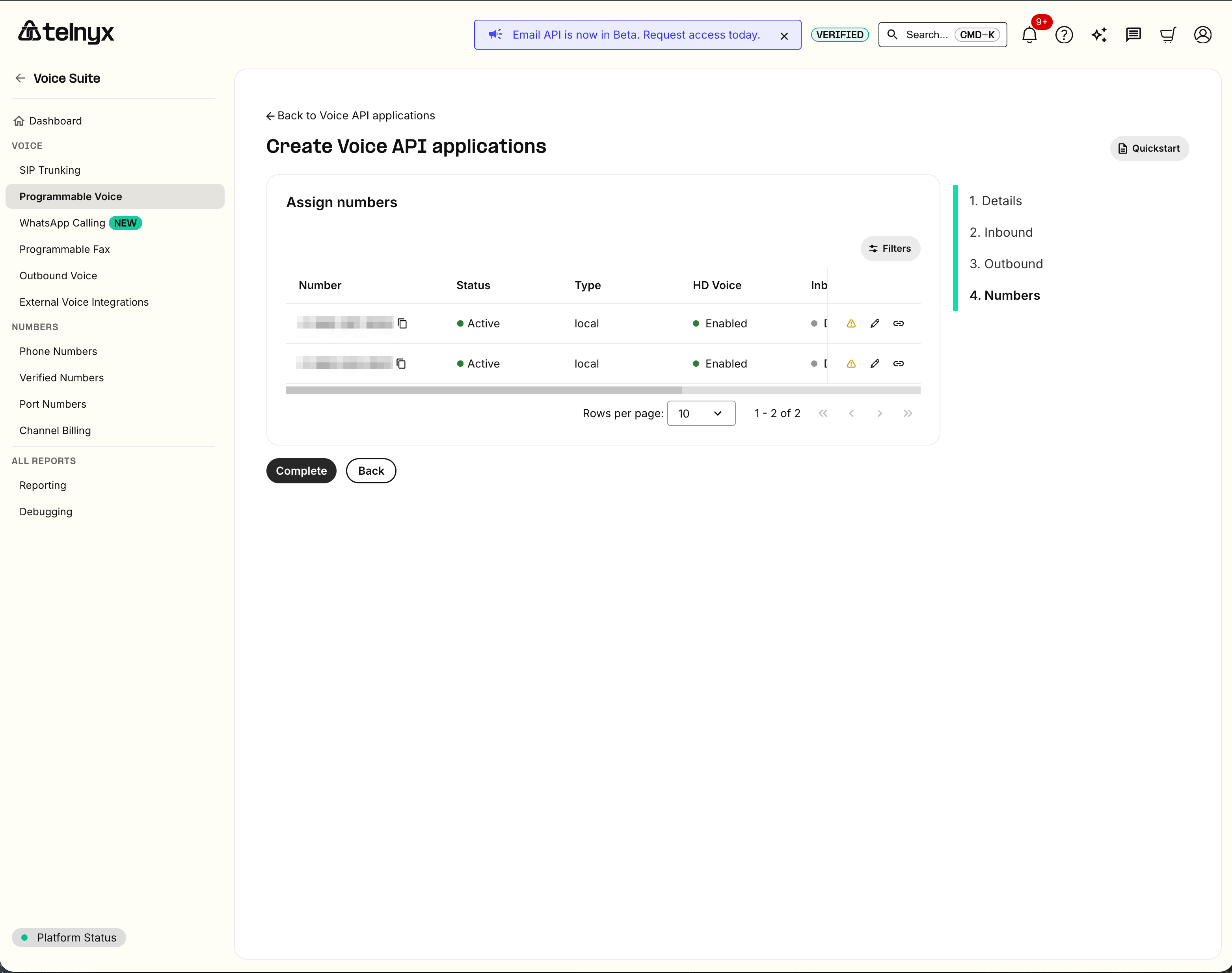
Telnyx may show 0 number(s) assigned with a red indicator in the confirmation dialog. This is informational for this setup and does not mean application creation failed.
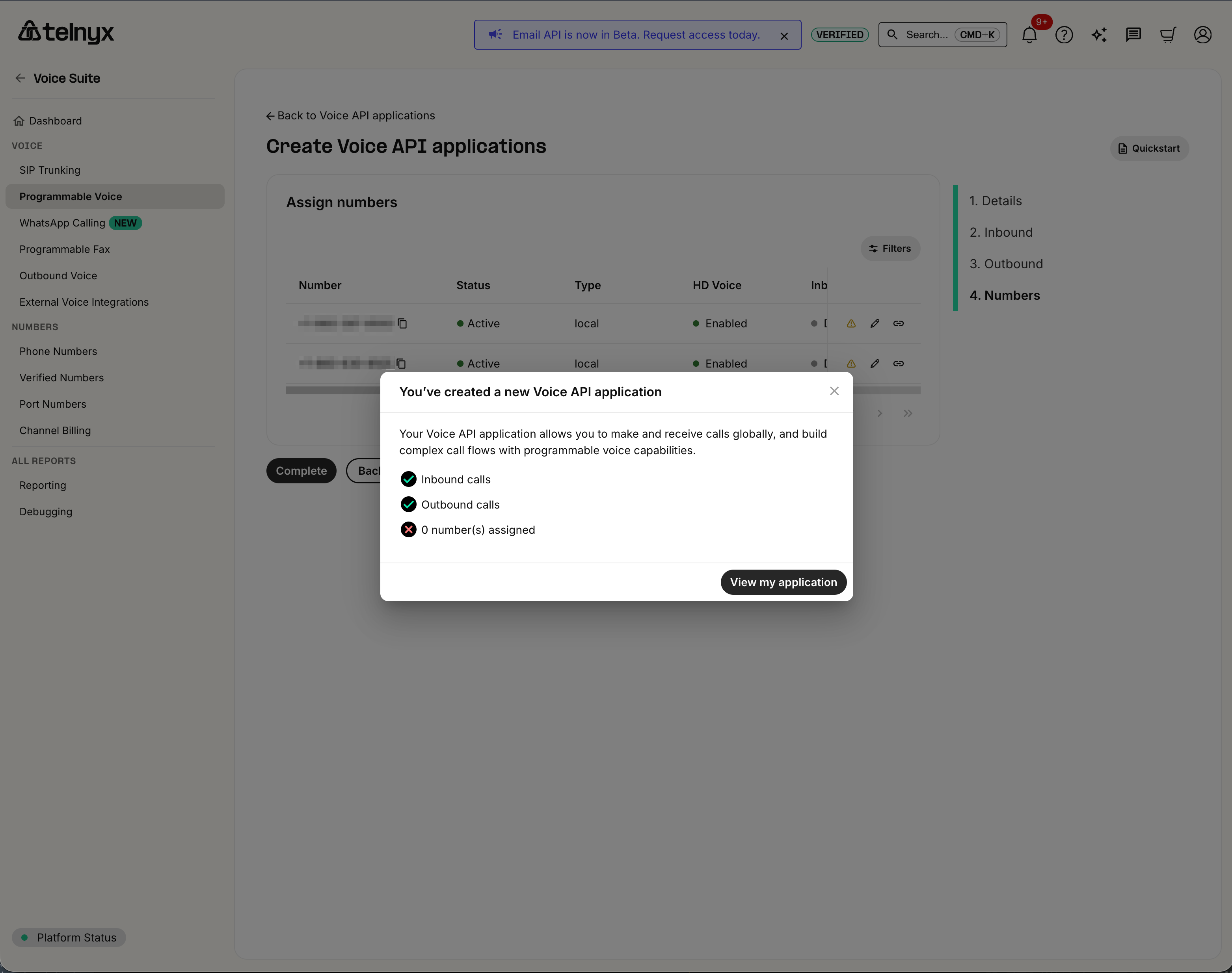
11. Verify both Telnyx resources
Open the saved Voice API Application and confirm that it is active and retains:
- webhook URL
https://api.charthero-dev.com/v1/telephony/telnyx/conference/events; - Webhook API v2;
- AnchorSite latency; and
- the intended outbound voice profile.
The Credential Connection and Voice API Application must have different Telnyx resource IDs. Keep both IDs private.
12. Open Organization Telephony in ChartHero
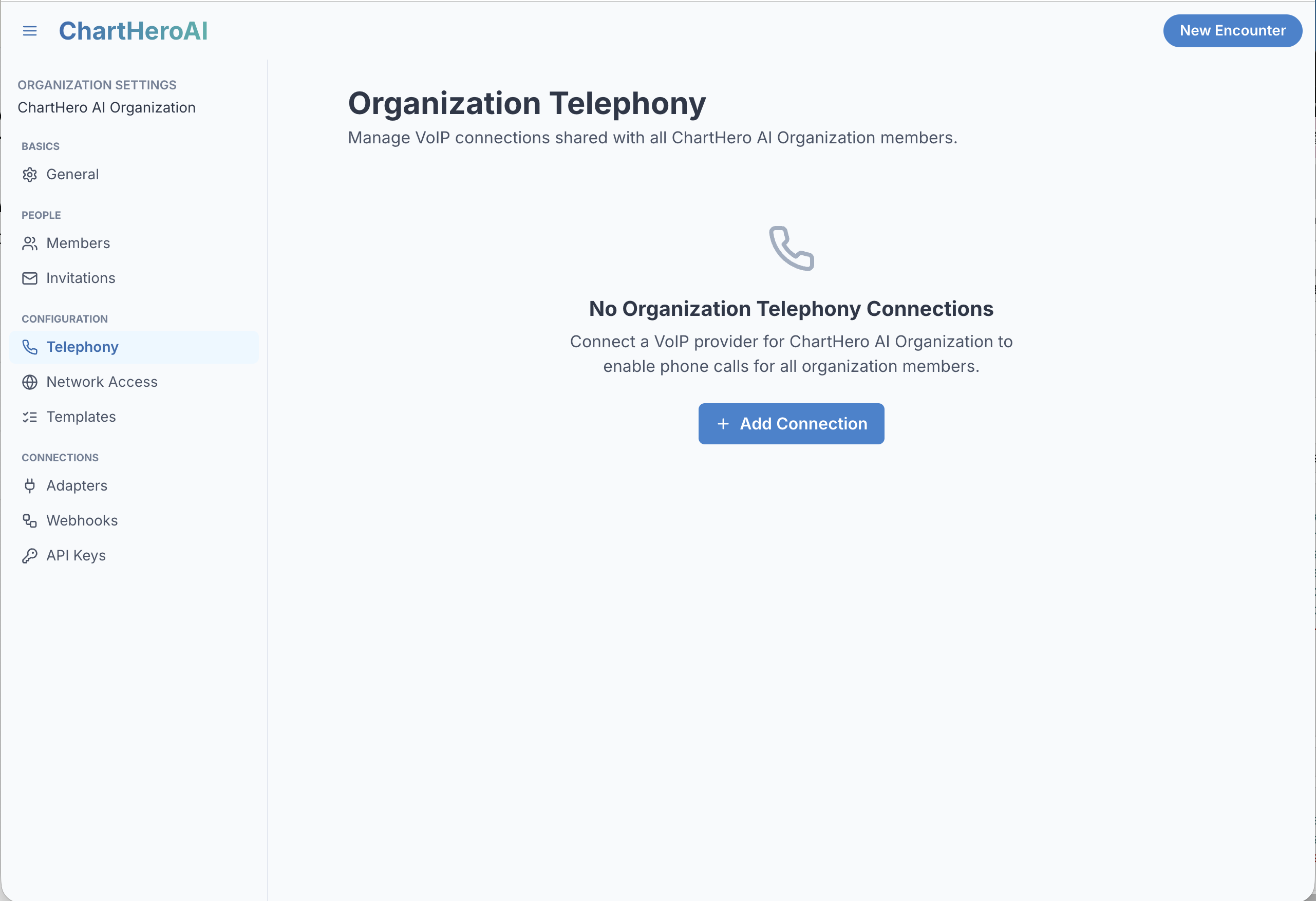
In ChartHero, open the navigation menu, select your organization, and then open Configuration → Telephony. Organization telephony connections are shared with members of that organization. Select Add Connection.
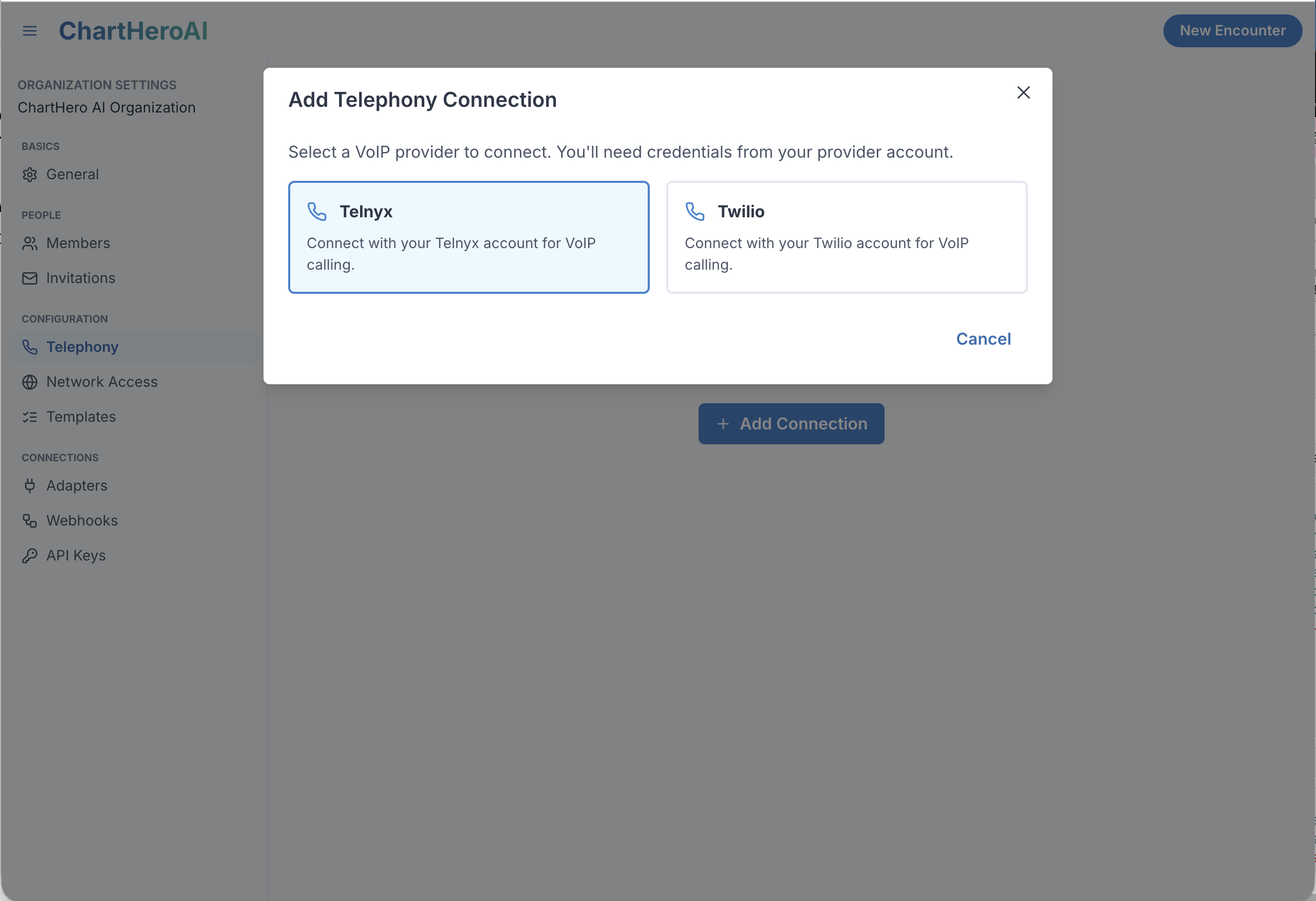
Choose Telnyx as the VoIP provider.
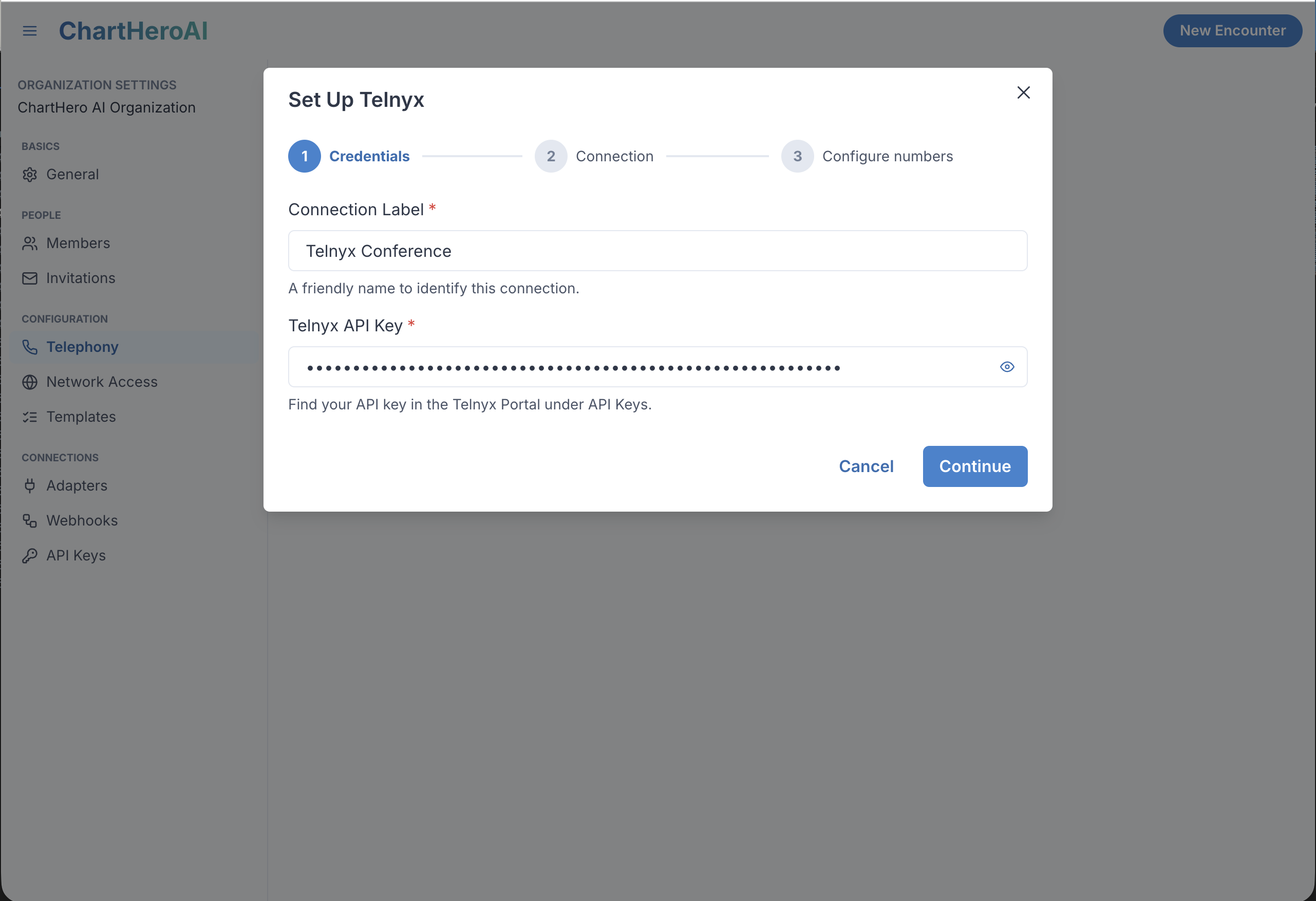
13. Enter the ChartHero connection details
On Credentials, enter:
- Connection Label: a friendly ChartHero name such as
Telnyx Multi-party; this labels the saved ChartHero integration and does not need to match either Telnyx resource name; and - Telnyx API Key: the secret Telnyx API v2 key for this account.
The Connection Label is not the Telnyx Credential Connection, Voice API Application, or a provider resource ID. Never include the API key in screenshots or support messages.
14. Select and validate the Multi-party Calling resources
On Connection:
- select the dedicated Telnyx Credential Connection;
- choose Multi-party calling; and
- select the distinct Telnyx Voice Application.
Direct calling supports one-to-one calls only. Multi-party calling starts with a direct call and permits participants to be added using the dedicated Multi-party Calling resources.
ChartHero validates the live provider configuration after both resources are selected. Continue only when the panel reports READY and every check passes, including the exact webhook URL, API v2, call parking, outbound profiles, active resources, and at least one number assigned to the Credential Connection.
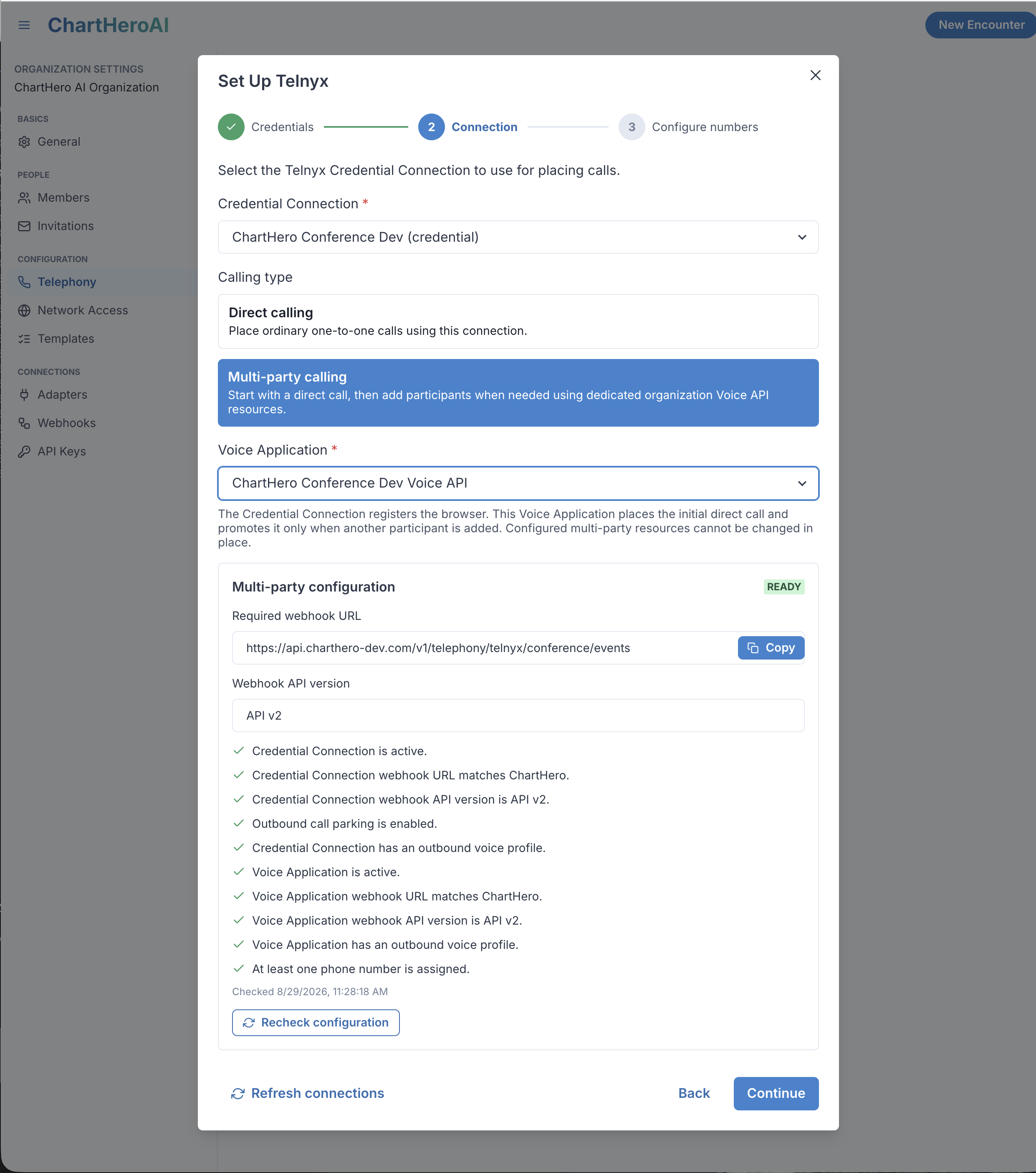
Use Recheck configuration after correcting a setting in Telnyx. Use Refresh connections if a newly created provider resource does not appear in a selector.
15. Configure caller-ID numbers and the webhook public key
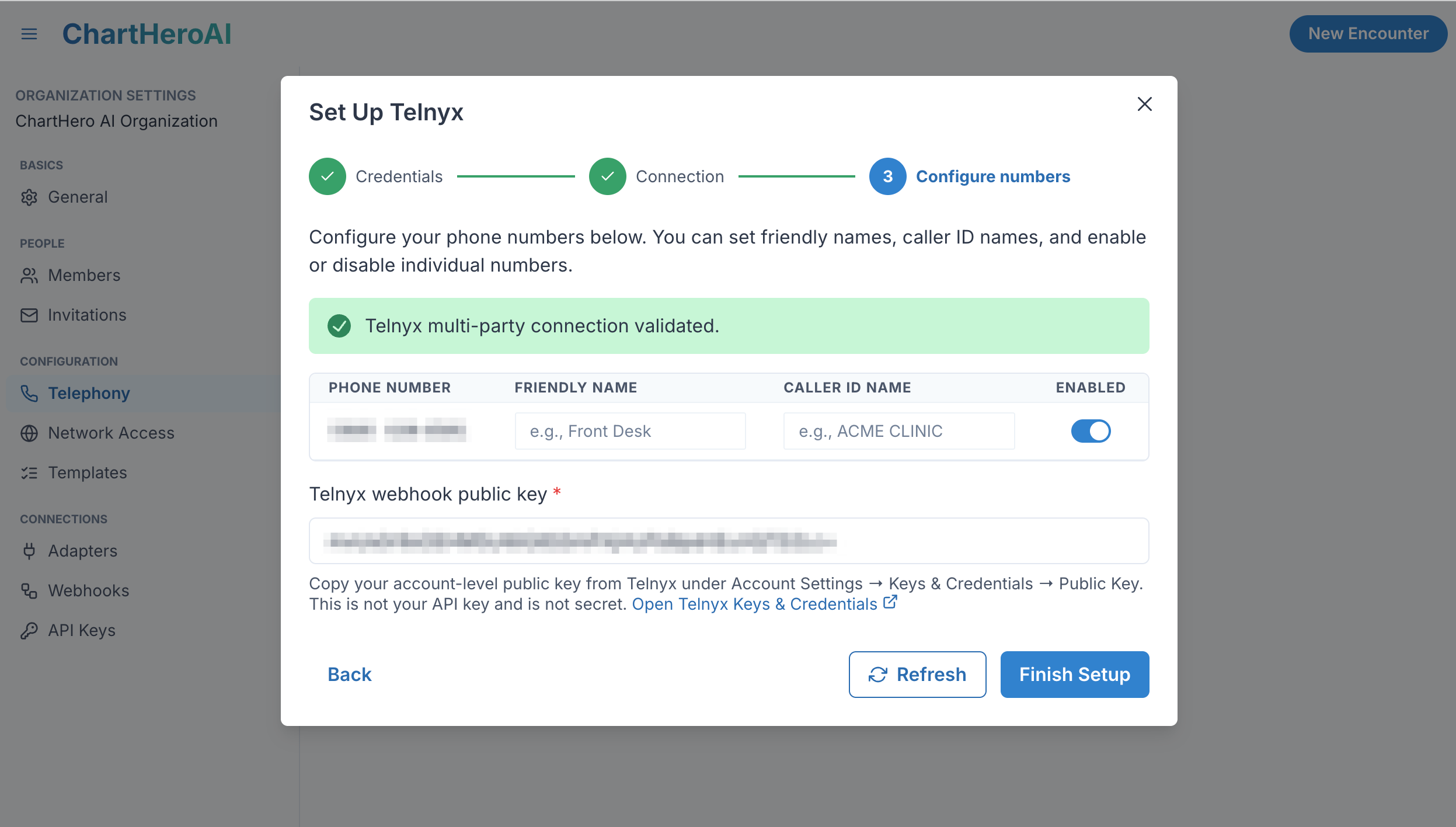
ChartHero lists the numbers assigned to the Credential Connection. For each number:
- Friendly Name is an optional internal label, such as
Front Desk, shown to ChartHero users when selecting a source number; - Caller ID Name is an optional caller-name/CNAM value sent for Telnyx outbound calls, limited to 15 characters; display by the receiving carrier is not guaranteed; and
- Enabled controls whether organization members can select that number in ChartHero.
Leave the optional names blank if no naming policy has been established, but keep at least one number enabled.
ChartHero also requires the account-level Telnyx webhook public key to verify API v2 webhook signatures. Follow the link in ChartHero or open Telnyx Account Settings → Keys & Credentials → Public Key, then copy the key.
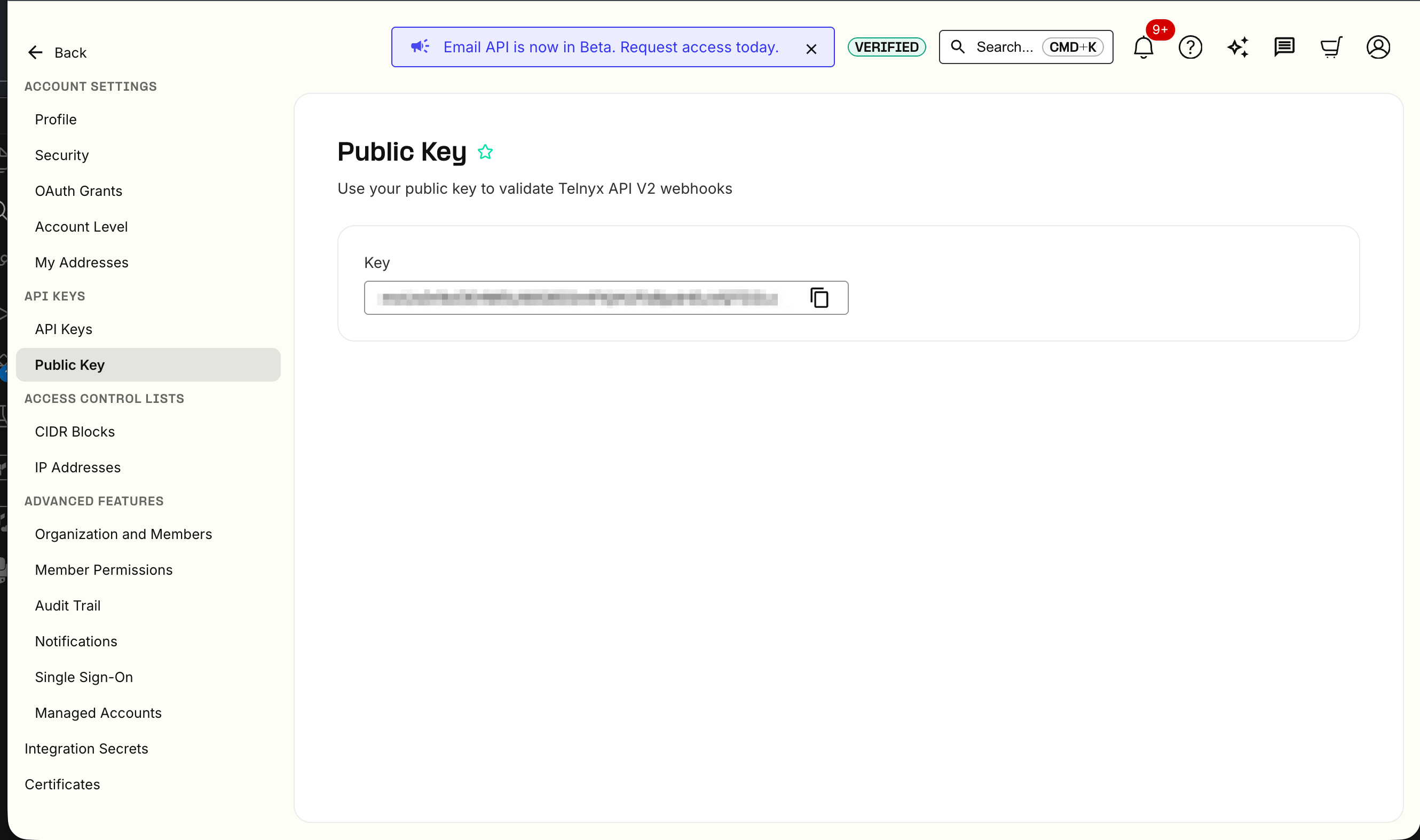
The webhook public key is not the Telnyx API key and is not a secret. Paste it into ChartHero, confirm that the connection remains validated, and select Finish Setup.
16. Confirm the ChartHero connection
The Organization Telephony page should show the connection as Configured and Multi-party calling. Organization members can now use its enabled numbers.
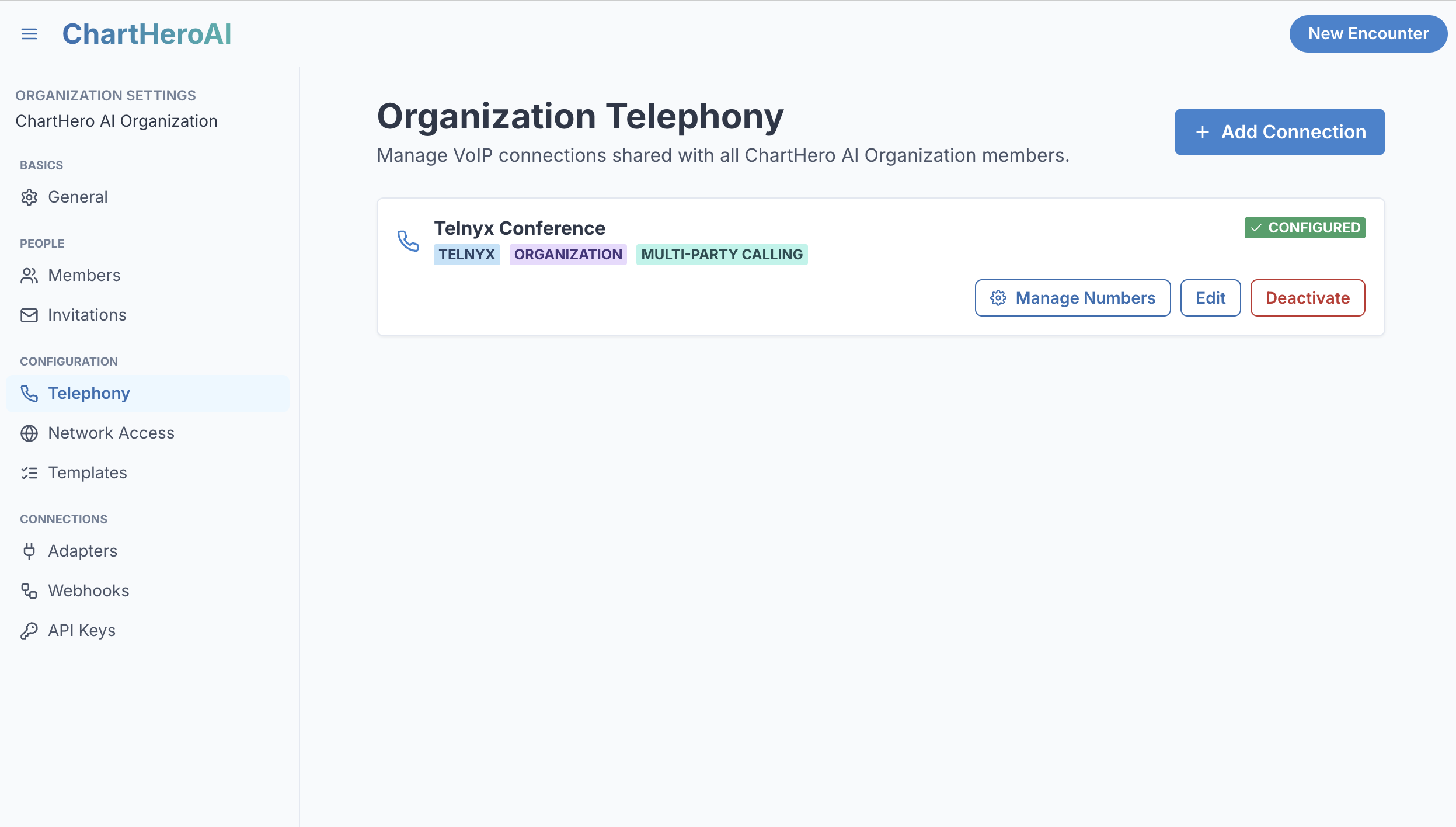
Use Manage Numbers to change friendly names, caller ID names, or number availability later. Use Edit to rotate the API key or review connection settings. Deactivating the connection removes it from active calling workflows.